How to Resize Images for Instagram Without Losing Quality
Instagram is a highly visual platform where image quality matters a lot.
However, many users notice that their photos become blurry, cropped incorrectly, or lose sharpness after uploading.
If you are searching for how to resize images for Instagram without losing quality, avoid blurry Instagram photos, or fit images perfectly for Instagram posts and stories, this guide will help you.
In this article, you will learn the correct Instagram image sizes, how to resize properly, and how to keep your images sharp and high-quality.
Why Instagram Reduces Image Quality
Instagram automatically compresses and resizes images to optimize performance across devices and reduce bandwidth usage.
During this process, your original image may lose some sharpness or detail.
- Images are compressed to reduce file size
- Large photos are resized automatically
- High-resolution images may be downscaled
- Incorrect aspect ratios cause cropping or distortion
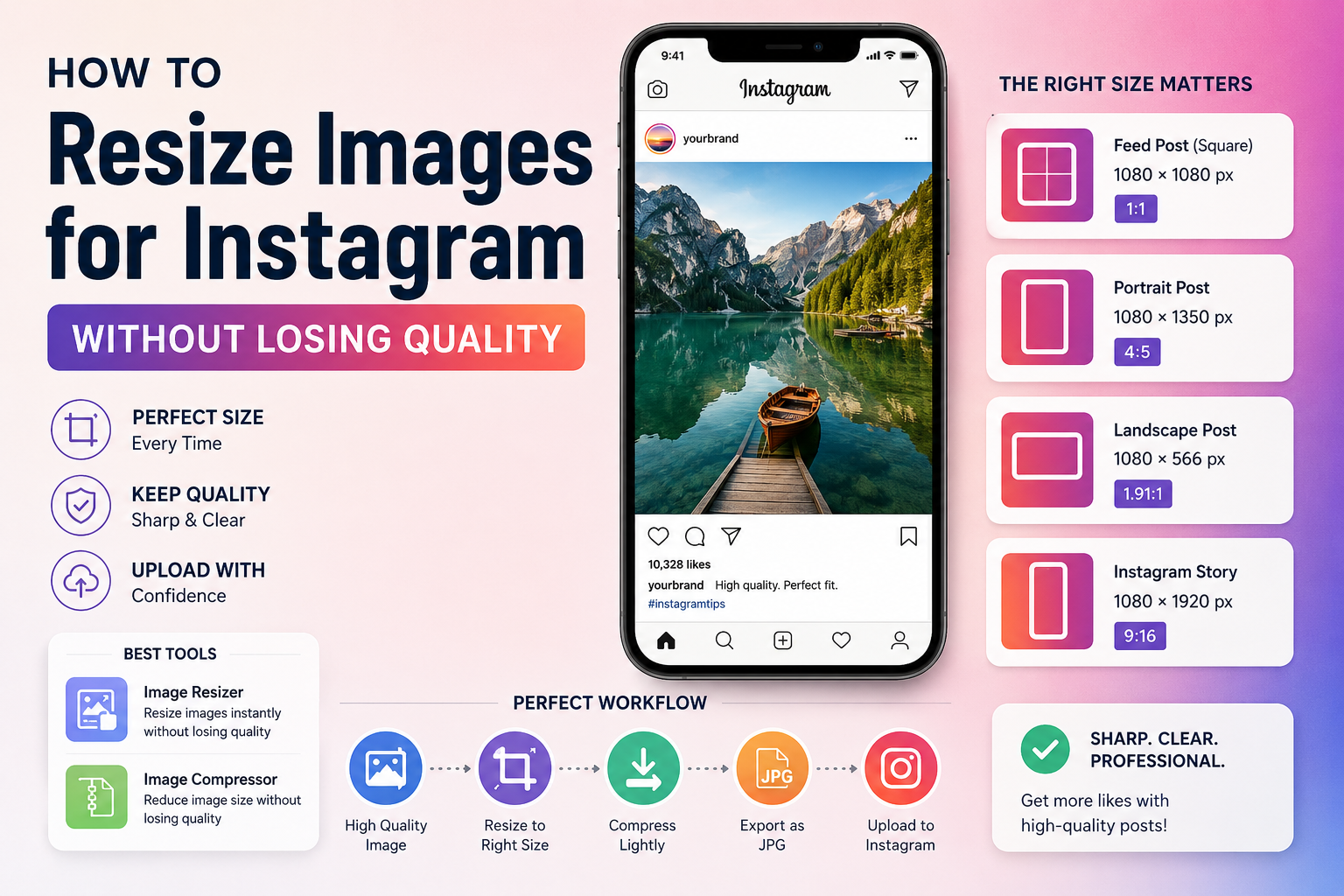
Recommended Instagram Image Sizes
Using the correct dimensions is the most important step to avoid quality loss.
| Instagram Type |
Recommended Size |
Aspect Ratio |
| Feed Post (Square) |
1080 × 1080 px |
1:1 |
| Portrait Post |
1080 × 1350 px |
4:5 |
| Landscape Post |
1080 × 566 px |
1.91:1 |
| Instagram Story |
1080 × 1920 px |
9:16 |
Best Ways to Resize Images for Instagram
1. Use an Online Image Resizer
The easiest way to resize images without losing quality is using a browser-based tool.
It allows you to adjust dimensions while maintaining clarity and sharpness.
👉 Try this tool:
Image Resizer Tool – Resize Images Instantly Online
2. Keep the Correct Aspect Ratio
One of the biggest mistakes users make is ignoring aspect ratios.
If your image ratio is wrong, Instagram will crop or stretch your photo.
- Square posts → 1:1
- Portrait posts → 4:5
- Stories → 9:16
3. Avoid Over-Resizing Images
Resizing an image multiple times can reduce quality.
Always resize from the original high-resolution image whenever possible.
4. Compress Images Before Uploading
Large image files may be heavily compressed by Instagram, causing quality loss.
Pre-compressing your image helps maintain better visual quality.
👉 Use this tool:
Image Compressor – Reduce Image Size Without Losing Quality
Best Image Format for Instagram
- JPG – Best for photos and social media posts
- PNG – Best for logos and graphics with transparency
- WebP – Best for optimized web performance (less common on Instagram uploads)
For most Instagram posts, JPG is the best choice because it balances quality and file size.
Tips to Keep Instagram Photos Sharp
- Use high-resolution original images
- Export images at 1080px width
- Avoid screenshots when possible
- Do not repeatedly compress the same image
- Use proper lighting when capturing photos
- Avoid sending images through apps before uploading
Common Instagram Image Problems
Blurry Photos After Upload
This usually happens due to excessive compression or incorrect resolution.
Cropped Images
Incorrect aspect ratio causes Instagram to crop important parts of your image.
Pixelated Images
Low-resolution images appear pixelated when stretched to fit Instagram dimensions.
Can Instagram Support HD Images?
Yes. Instagram supports high-resolution uploads, but it still applies compression.
To get the best results, always upload images in recommended dimensions and formats.
Best Workflow for Instagram Image Optimization
- Start with a high-quality original image
- Resize it to Instagram recommended size
- Compress slightly to reduce file size
- Export in JPG format
- Upload directly to Instagram (avoid re-sending via apps)
Conclusion
Resizing images for Instagram without losing quality is all about using the correct dimensions, maintaining aspect ratios, and optimizing file size before upload.
By following these steps, you can ensure your Instagram posts remain sharp, clear, and professional-looking.
👉 Try these free tools:
How to Resize Images for Instagram Without Losing Quality
Instagram is a highly visual platform where image quality matters a lot. However, many users notice that their photos become blurry, cropped incorrectly, or lose sharpness after uploading.
If you are searching for how to resize images for Instagram without losing quality, avoid blurry Instagram photos, or fit images perfectly for Instagram posts and stories, this guide will help you.
In this article, you will learn the correct Instagram image sizes, how to resize properly, and how to keep your images sharp and high-quality.
Why Instagram Reduces Image Quality
Instagram automatically compresses and resizes images to optimize performance across devices and reduce bandwidth usage. During this process, your original image may lose some sharpness or detail.
Recommended Instagram Image Sizes
Using the correct dimensions is the most important step to avoid quality loss.
Best Ways to Resize Images for Instagram
1. Use an Online Image Resizer
The easiest way to resize images without losing quality is using a browser-based tool. It allows you to adjust dimensions while maintaining clarity and sharpness.
👉 Try this tool:
Image Resizer Tool – Resize Images Instantly Online
2. Keep the Correct Aspect Ratio
One of the biggest mistakes users make is ignoring aspect ratios. If your image ratio is wrong, Instagram will crop or stretch your photo.
3. Avoid Over-Resizing Images
Resizing an image multiple times can reduce quality. Always resize from the original high-resolution image whenever possible.
4. Compress Images Before Uploading
Large image files may be heavily compressed by Instagram, causing quality loss. Pre-compressing your image helps maintain better visual quality.
👉 Use this tool:
Image Compressor – Reduce Image Size Without Losing Quality
Best Image Format for Instagram
For most Instagram posts, JPG is the best choice because it balances quality and file size.
Tips to Keep Instagram Photos Sharp
Common Instagram Image Problems
Blurry Photos After Upload
This usually happens due to excessive compression or incorrect resolution.
Cropped Images
Incorrect aspect ratio causes Instagram to crop important parts of your image.
Pixelated Images
Low-resolution images appear pixelated when stretched to fit Instagram dimensions.
Can Instagram Support HD Images?
Yes. Instagram supports high-resolution uploads, but it still applies compression. To get the best results, always upload images in recommended dimensions and formats.
Best Workflow for Instagram Image Optimization
Conclusion
Resizing images for Instagram without losing quality is all about using the correct dimensions, maintaining aspect ratios, and optimizing file size before upload.
By following these steps, you can ensure your Instagram posts remain sharp, clear, and professional-looking.
👉 Try these free tools:
AUTHOR
EasyToolHub