How to Convert Image to PDF Without Losing Quality (Free Online Method)
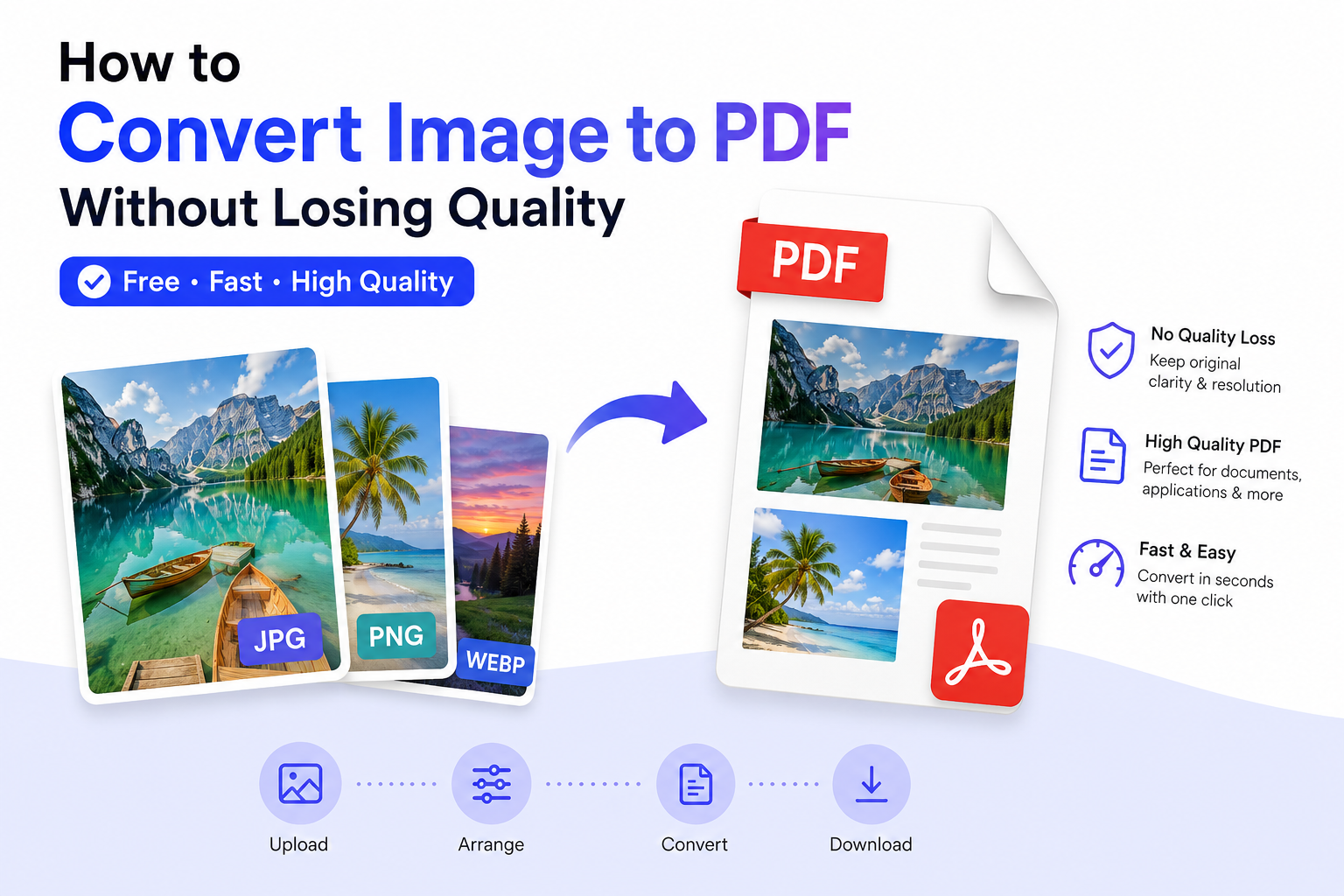
Many users need to convert images into PDF files for job applications, school submissions, business documents, or online forms.
However, a common problem is that images often become blurry or lose quality after conversion.
If you are searching for how to convert image to PDF without losing quality, image to PDF converter free, or best way to create high-quality PDF from images, this guide will help you.
In this article, you will learn the best free online method to convert images into high-quality PDF files while keeping the original clarity and resolution.
Why Convert Images to PDF?
PDF is one of the most widely used file formats for documents because it preserves layout, quality, and compatibility across all devices.
- Required for job applications and resumes
- Used in school and university submissions
- Preferred format for official documents
- Keeps images organized in a single file
- Ensures consistent formatting across devices
Common Problems When Converting Image to PDF
Many users face issues when converting images to PDF, such as:
- Blurry or pixelated images inside PDF
- Large file size after conversion
- Low resolution output
- Unclear text or details in scanned images
Best Method to Convert Image to PDF Without Losing Quality
The easiest and safest method is to use an online image to PDF converter that preserves original resolution without compression.
👉 Try our free tool here:
Image to PDF Converter – Convert JPG & PNG to PDF Instantly
Steps to Convert Image to PDF Online
- Open the Image to PDF Converter tool
- Upload your image (JPG or PNG)
- Arrange images if converting multiple files
- Click convert to generate PDF
- Download your high-quality PDF file
The process is fast and works directly in your browser without installation.
Does Image to PDF Conversion Reduce Quality?
A good converter does NOT reduce image quality.
Instead, it embeds the original image inside a PDF container without compression loss.
However, low-quality tools may:
- Compress images unnecessarily
- Reduce resolution
- Increase file size inefficiently
Best Image Formats for PDF Conversion
- JPG/JPEG – Best for photos and smaller file size
- PNG – Best for clear graphics and transparency
- WEBP – Modern format with good compression
All of these formats can be converted into PDF easily using our tool.
👉 Convert image formats before PDF if needed
Tips to Keep PDF Quality High
To ensure your PDF looks sharp and professional, follow these tips:
- Start with a high-resolution image
- Avoid screenshots if possible
- Do not compress image before conversion
- Use proper image dimensions (not too small)
- Use JPG or PNG for best compatibility
When Do People Use Image to PDF Conversion?
This feature is widely used in many real-world scenarios:
- Uploading documents for job applications
- Submitting school assignments
- Sending scanned documents
- Creating digital portfolios
- Business invoice submissions
Is It Safe to Convert Images to PDF Online?
Yes. EasyToolHub tools run directly in your browser.
Your files are processed securely and are not permanently stored on servers.
This ensures privacy, fast processing, and no software installation required.
Conclusion
Converting images to PDF without losing quality is simple when using the right method.
By using a proper online tool, you can maintain sharpness, preserve resolution, and create professional-looking documents instantly.
Whether you are submitting documents for work, school, or online forms, this method ensures your files remain clear and high-quality.
👉 Try these free tools now:
How to Convert Image to PDF Without Losing Quality (Free Online Method)
Many users need to convert images into PDF files for job applications, school submissions, business documents, or online forms. However, a common problem is that images often become blurry or lose quality after conversion.
If you are searching for how to convert image to PDF without losing quality, image to PDF converter free, or best way to create high-quality PDF from images, this guide will help you.
In this article, you will learn the best free online method to convert images into high-quality PDF files while keeping the original clarity and resolution.
Why Convert Images to PDF?
PDF is one of the most widely used file formats for documents because it preserves layout, quality, and compatibility across all devices.
Common Problems When Converting Image to PDF
Many users face issues when converting images to PDF, such as:
Best Method to Convert Image to PDF Without Losing Quality
The easiest and safest method is to use an online image to PDF converter that preserves original resolution without compression.
👉 Try our free tool here:
Image to PDF Converter – Convert JPG & PNG to PDF Instantly
Steps to Convert Image to PDF Online
The process is fast and works directly in your browser without installation.
Does Image to PDF Conversion Reduce Quality?
A good converter does NOT reduce image quality. Instead, it embeds the original image inside a PDF container without compression loss.
However, low-quality tools may:
Best Image Formats for PDF Conversion
All of these formats can be converted into PDF easily using our tool.
👉 Convert image formats before PDF if needed
Tips to Keep PDF Quality High
To ensure your PDF looks sharp and professional, follow these tips:
When Do People Use Image to PDF Conversion?
This feature is widely used in many real-world scenarios:
Is It Safe to Convert Images to PDF Online?
Yes. EasyToolHub tools run directly in your browser. Your files are processed securely and are not permanently stored on servers.
This ensures privacy, fast processing, and no software installation required.
Conclusion
Converting images to PDF without losing quality is simple when using the right method. By using a proper online tool, you can maintain sharpness, preserve resolution, and create professional-looking documents instantly.
Whether you are submitting documents for work, school, or online forms, this method ensures your files remain clear and high-quality.
👉 Try these free tools now:
AUTHOR
EasyToolHub