How to Send HD Videos on WhatsApp Without Losing Quality
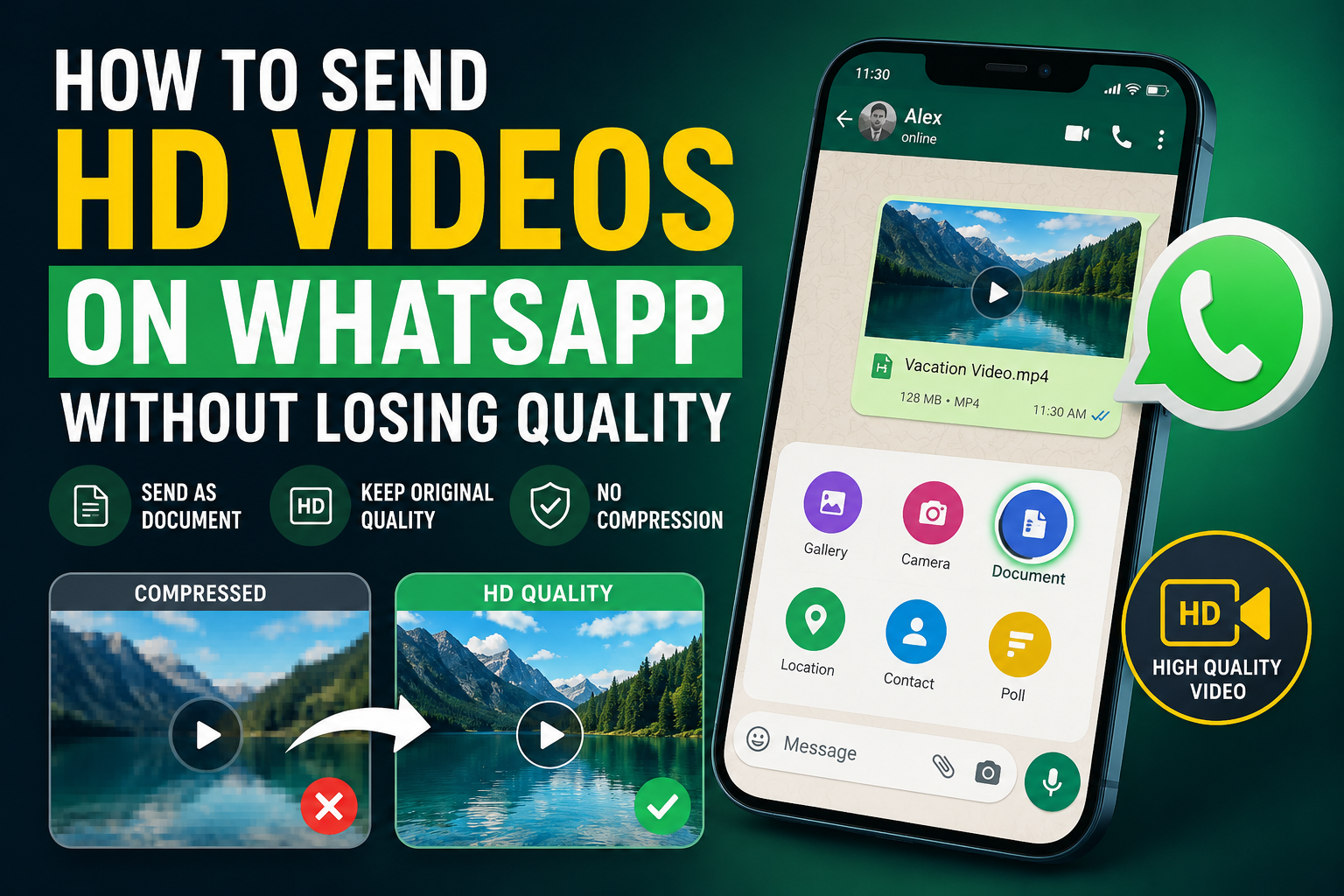
Many users notice that videos sent through WhatsApp become blurry, pixelated, or heavily compressed after uploading.
This happens because WhatsApp automatically reduces video quality to save data usage and improve upload speed.
If you are searching for ways to send HD videos on WhatsApp, avoid video compression, or share high quality videos without losing clarity, this guide will help you.
In this article, you will learn the best methods to send clear HD videos on WhatsApp while keeping the original quality as much as possible.
Why WhatsApp Reduces Video Quality
WhatsApp compresses videos automatically to reduce file size and ensure faster delivery across mobile networks.
While this improves performance, it also reduces video resolution and bitrate.
- High-resolution videos are compressed automatically
- Frame rate and bitrate may be reduced
- Large files are resized to lower quality
- Fast motion videos may lose sharpness
Best Ways to Send HD Videos on WhatsApp
1. Send Videos as Documents (Best Method)
The most effective way to avoid WhatsApp compression is to send videos as documents instead of using the gallery option.
This keeps the original video file unchanged.
- Open WhatsApp chat
- Tap the attachment (📎) icon
- Select Document instead of Gallery
- Browse and choose your video file
- Send the file normally
This method preserves full video resolution and original quality without compression.
2. Enable WhatsApp HD Video Option (If Available)
Some WhatsApp versions now support HD media sending.
When selecting a video, you may see an HD option at the top of the screen.
- Select HD before sending the video
- Choose higher quality instead of standard mode
- Best for short to medium-length videos
However, this still applies mild compression compared to sending as a document.
3. Compress Video Smartly Before Sending
Instead of letting WhatsApp heavily compress your video, you can optimize it yourself using proper settings or tools.
This helps maintain visual quality while reducing file size efficiently.
Try optimizing your files using free tools:
👉 Image Compressor – Also works for optimizing media size before upload
For better results, you can also use video editing apps to reduce resolution slightly before sending.
4. Reduce Video Resolution Before Upload
Large 4K videos are usually compressed aggressively by WhatsApp.
Reducing resolution manually can improve perceived quality after upload.
- 4K → 1080p (recommended)
- 1080p → 720p (for faster sharing)
- Keep bitrate moderate for balance
Recommended Video Settings for WhatsApp
To achieve the best balance between quality and file size, use these recommended settings:
| Video Type |
Recommended Settings |
| Standard Video |
1080p, 30fps |
| High Quality Video |
1080p, 60fps (if needed) |
| Fast Sharing |
720p, 30fps |
Best Video Formats for WhatsApp
- MP4 (H.264) – Best compatibility and quality balance
- MKV – High quality but may increase file size
- MOV – Good for iPhone users but larger size
MP4 is the most recommended format for WhatsApp sharing.
How to Send Large Videos Without Losing Quality
If your video is too large, WhatsApp will automatically compress it.
To avoid this, you can:
- Send video as a document instead of gallery
- Split long videos into smaller clips
- Reduce resolution before sending
- Use cloud sharing links for very large files
Why Your WhatsApp Video Looks Blurry
Videos may appear blurry due to:
- Heavy compression applied by WhatsApp
- Low bitrate during upload
- Fast motion scenes losing detail
- Automatic resolution downgrade
Sending videos as documents helps completely avoid most of these issues.
Is It Safe to Send Videos as Documents?
Yes. Sending videos as documents is completely safe and does not affect the original file.
The video is transferred exactly as it is stored on your device.
This method is commonly used for professional sharing, business files, and high-quality media transfer.
Conclusion
WhatsApp video compression can significantly reduce quality, especially for high-resolution recordings.
However, by sending videos as documents, optimizing resolution, and using the right format, you can preserve much better clarity.
Using the correct method ensures your videos stay sharp, professional, and visually clear when shared.
👉 Try these free tools to optimize your media:
How to Send HD Videos on WhatsApp Without Losing Quality
Many users notice that videos sent through WhatsApp become blurry, pixelated, or heavily compressed after uploading. This happens because WhatsApp automatically reduces video quality to save data usage and improve upload speed.
If you are searching for ways to send HD videos on WhatsApp, avoid video compression, or share high quality videos without losing clarity, this guide will help you.
In this article, you will learn the best methods to send clear HD videos on WhatsApp while keeping the original quality as much as possible.
Why WhatsApp Reduces Video Quality
WhatsApp compresses videos automatically to reduce file size and ensure faster delivery across mobile networks. While this improves performance, it also reduces video resolution and bitrate.
Best Ways to Send HD Videos on WhatsApp
1. Send Videos as Documents (Best Method)
The most effective way to avoid WhatsApp compression is to send videos as documents instead of using the gallery option. This keeps the original video file unchanged.
This method preserves full video resolution and original quality without compression.
2. Enable WhatsApp HD Video Option (If Available)
Some WhatsApp versions now support HD media sending. When selecting a video, you may see an HD option at the top of the screen.
However, this still applies mild compression compared to sending as a document.
3. Compress Video Smartly Before Sending
Instead of letting WhatsApp heavily compress your video, you can optimize it yourself using proper settings or tools. This helps maintain visual quality while reducing file size efficiently.
Try optimizing your files using free tools:
👉 Image Compressor – Also works for optimizing media size before upload
For better results, you can also use video editing apps to reduce resolution slightly before sending.
4. Reduce Video Resolution Before Upload
Large 4K videos are usually compressed aggressively by WhatsApp. Reducing resolution manually can improve perceived quality after upload.
Recommended Video Settings for WhatsApp
To achieve the best balance between quality and file size, use these recommended settings:
Best Video Formats for WhatsApp
MP4 is the most recommended format for WhatsApp sharing.
How to Send Large Videos Without Losing Quality
If your video is too large, WhatsApp will automatically compress it. To avoid this, you can:
Why Your WhatsApp Video Looks Blurry
Videos may appear blurry due to:
Sending videos as documents helps completely avoid most of these issues.
Is It Safe to Send Videos as Documents?
Yes. Sending videos as documents is completely safe and does not affect the original file. The video is transferred exactly as it is stored on your device.
This method is commonly used for professional sharing, business files, and high-quality media transfer.
Conclusion
WhatsApp video compression can significantly reduce quality, especially for high-resolution recordings. However, by sending videos as documents, optimizing resolution, and using the right format, you can preserve much better clarity.
Using the correct method ensures your videos stay sharp, professional, and visually clear when shared.
👉 Try these free tools to optimize your media:
AUTHOR
EasyToolHub