How to Send High Quality Photos on WhatsApp Without Losing Quality
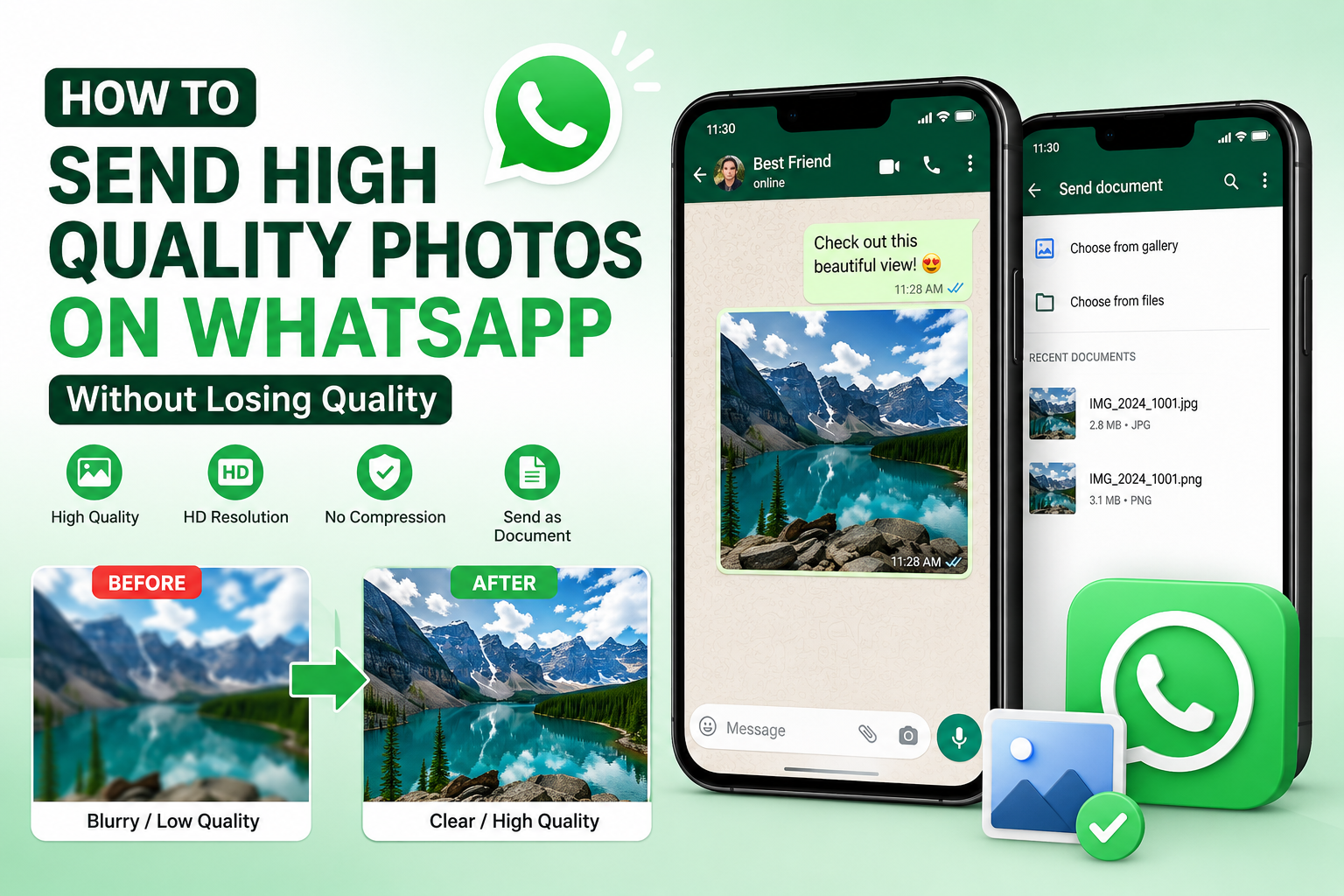
Many users notice that photos sent through WhatsApp become blurry, pixelated, or lose quality after uploading.
This happens because WhatsApp automatically compresses images to reduce file size and speed up delivery.
If you are searching for ways to send high quality photos on WhatsApp, avoid blurry WhatsApp images, or share photos without losing quality, this guide will help you.
In this article, you will learn the best methods to send clear HD images on WhatsApp using free online tools.
Why WhatsApp Reduces Image Quality
WhatsApp compresses images automatically to save storage space, reduce mobile data usage, and improve message delivery speed.
During compression, image resolution and file quality are reduced.
- Large images are resized automatically
- High-resolution photos are compressed
- Image details may become blurry
- Colors and sharpness can be slightly reduced
Best Ways to Send High Quality Photos on WhatsApp
1. Send Photos as Documents
The best way to avoid WhatsApp compression is by sending images as documents instead of regular photos.
- Open WhatsApp chat
- Tap attachment icon
- Select Document instead of Gallery
- Choose your image file
- Send the file
This method preserves original image quality and resolution.
2. Resize Large Images Before Sending
Very large images can trigger stronger compression on WhatsApp.
Resizing images properly before uploading can help maintain better quality while reducing file size.
You can resize images online here:
👉 Image Resizer Tool – Resize Images Instantly Online
3. Compress Images Without Losing Quality
Instead of letting WhatsApp heavily compress your images automatically, you can optimize them yourself using an image compressor.
This helps preserve visual quality while reducing file size efficiently.
Try this free online tool:
👉 Image Compressor – Reduce Image Size Without Losing Quality
Recommended Image Size for WhatsApp
For best results, use optimized image dimensions before sending.
| Image Type |
Recommended Size |
| Regular Photo |
1600px width or below |
| Status Upload |
1080 x 1920 px |
| Profile Picture |
640 x 640 px |
Best Image Formats for WhatsApp
- JPG/JPEG – Smaller size and faster sending
- PNG – Better quality but larger file size
- WEBP – Efficient compression with good quality
You can convert image formats easily here:
👉 Image Converter – Convert JPG, PNG, and WEBP Online
How to Make WhatsApp Photos Clearer
Here are some additional tips to improve image quality on WhatsApp:
- Use good lighting when taking photos
- Avoid screenshots whenever possible
- Resize images before uploading
- Compress images manually before sending
- Send important photos as documents
- Use modern formats like WEBP when supported
Can WhatsApp Send HD Photos?
Yes. Newer versions of WhatsApp support HD photo sending.
When uploading an image, you may see an HD option at the top of the screen.
Selecting HD helps preserve more image quality compared to standard uploads.
However, some compression may still occur depending on image size and internet conditions.
Is It Safe to Resize or Compress Images Online?
Yes. EasyToolHub tools work directly inside your browser.
Your images are processed locally without uploading files to external servers, helping keep your data private and secure.
Conclusion
WhatsApp image compression can make photos appear blurry or lower in quality.
By resizing images properly, compressing them efficiently, and sending files as documents, you can preserve much better image quality.
Using the right image tools before uploading also helps improve sharing speed and reduce storage usage.
👉 Try these free tools now:
How to Send High Quality Photos on WhatsApp Without Losing Quality
Many users notice that photos sent through WhatsApp become blurry, pixelated, or lose quality after uploading. This happens because WhatsApp automatically compresses images to reduce file size and speed up delivery.
If you are searching for ways to send high quality photos on WhatsApp, avoid blurry WhatsApp images, or share photos without losing quality, this guide will help you.
In this article, you will learn the best methods to send clear HD images on WhatsApp using free online tools.
Why WhatsApp Reduces Image Quality
WhatsApp compresses images automatically to save storage space, reduce mobile data usage, and improve message delivery speed. During compression, image resolution and file quality are reduced.
Best Ways to Send High Quality Photos on WhatsApp
1. Send Photos as Documents
The best way to avoid WhatsApp compression is by sending images as documents instead of regular photos.
This method preserves original image quality and resolution.
2. Resize Large Images Before Sending
Very large images can trigger stronger compression on WhatsApp. Resizing images properly before uploading can help maintain better quality while reducing file size.
You can resize images online here:
👉 Image Resizer Tool – Resize Images Instantly Online
3. Compress Images Without Losing Quality
Instead of letting WhatsApp heavily compress your images automatically, you can optimize them yourself using an image compressor. This helps preserve visual quality while reducing file size efficiently.
Try this free online tool:
👉 Image Compressor – Reduce Image Size Without Losing Quality
Recommended Image Size for WhatsApp
For best results, use optimized image dimensions before sending.
Best Image Formats for WhatsApp
You can convert image formats easily here:
👉 Image Converter – Convert JPG, PNG, and WEBP Online
How to Make WhatsApp Photos Clearer
Here are some additional tips to improve image quality on WhatsApp:
Can WhatsApp Send HD Photos?
Yes. Newer versions of WhatsApp support HD photo sending. When uploading an image, you may see an HD option at the top of the screen. Selecting HD helps preserve more image quality compared to standard uploads.
However, some compression may still occur depending on image size and internet conditions.
Is It Safe to Resize or Compress Images Online?
Yes. EasyToolHub tools work directly inside your browser. Your images are processed locally without uploading files to external servers, helping keep your data private and secure.
Conclusion
WhatsApp image compression can make photos appear blurry or lower in quality. By resizing images properly, compressing them efficiently, and sending files as documents, you can preserve much better image quality.
Using the right image tools before uploading also helps improve sharing speed and reduce storage usage.
👉 Try these free tools now:
AUTHOR
EasyToolHub